How to upload your documents to ProClient
ProClient is our secure client portal. It's the only place we collect tax documents, so your information stays protected. Uploading takes just a few minutes.
-
Find your welcome email.
When we set up your portal, ProClient emails you a link to your personal portal, along with your username and password. Can't find it? Check your spam folder, or text us and we'll resend it.
-
Sign in.
Click the link in that email, or use the Go to ProClient button on this page, and enter your username and password.
-
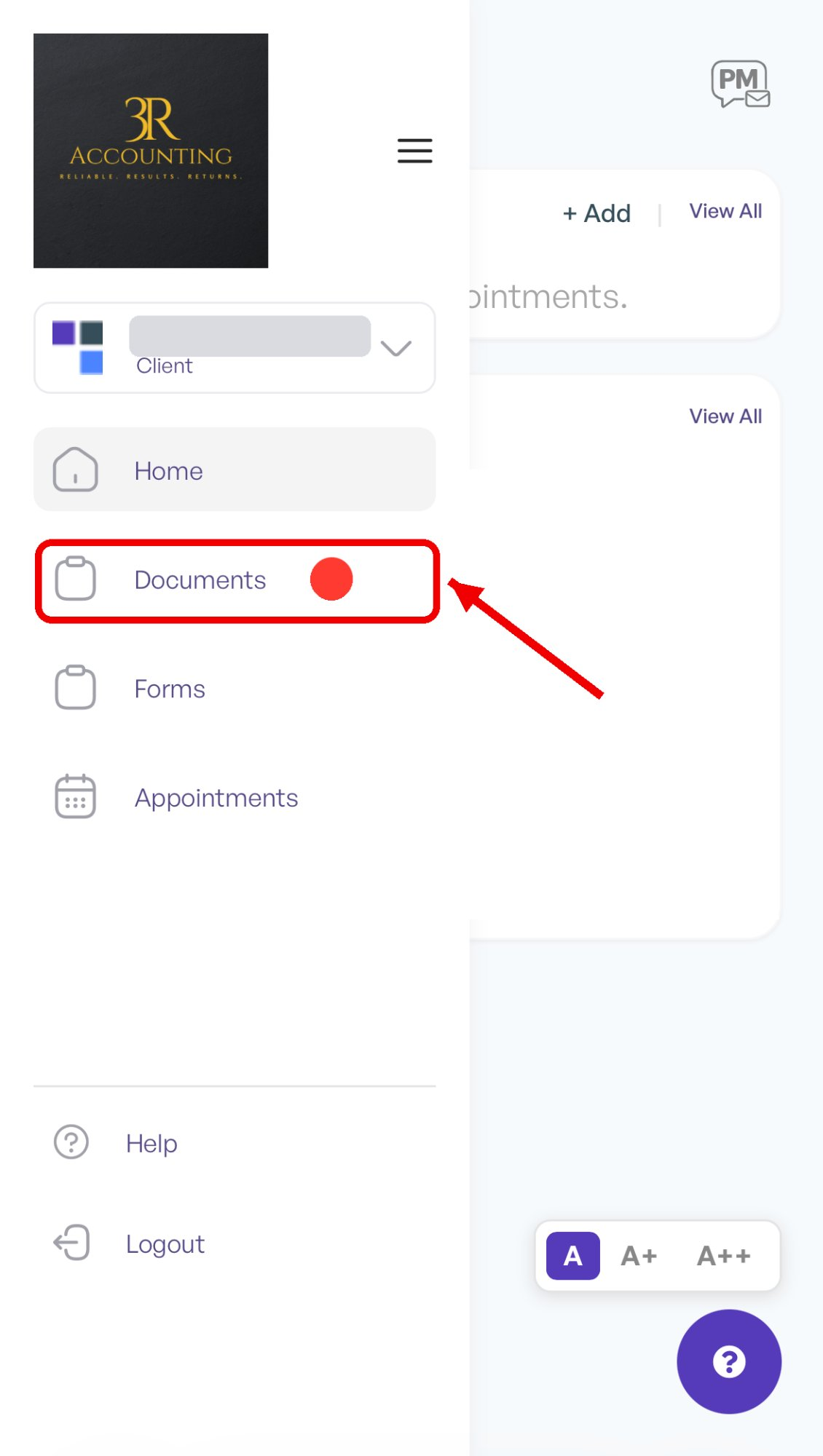
Go to Documents.
After you sign in, you'll land on your Home page. On a phone, tap the ☰ menu icon at the top to open the menu, then tap Documents. On a computer, the menu is already on the left, so just click Documents.
-
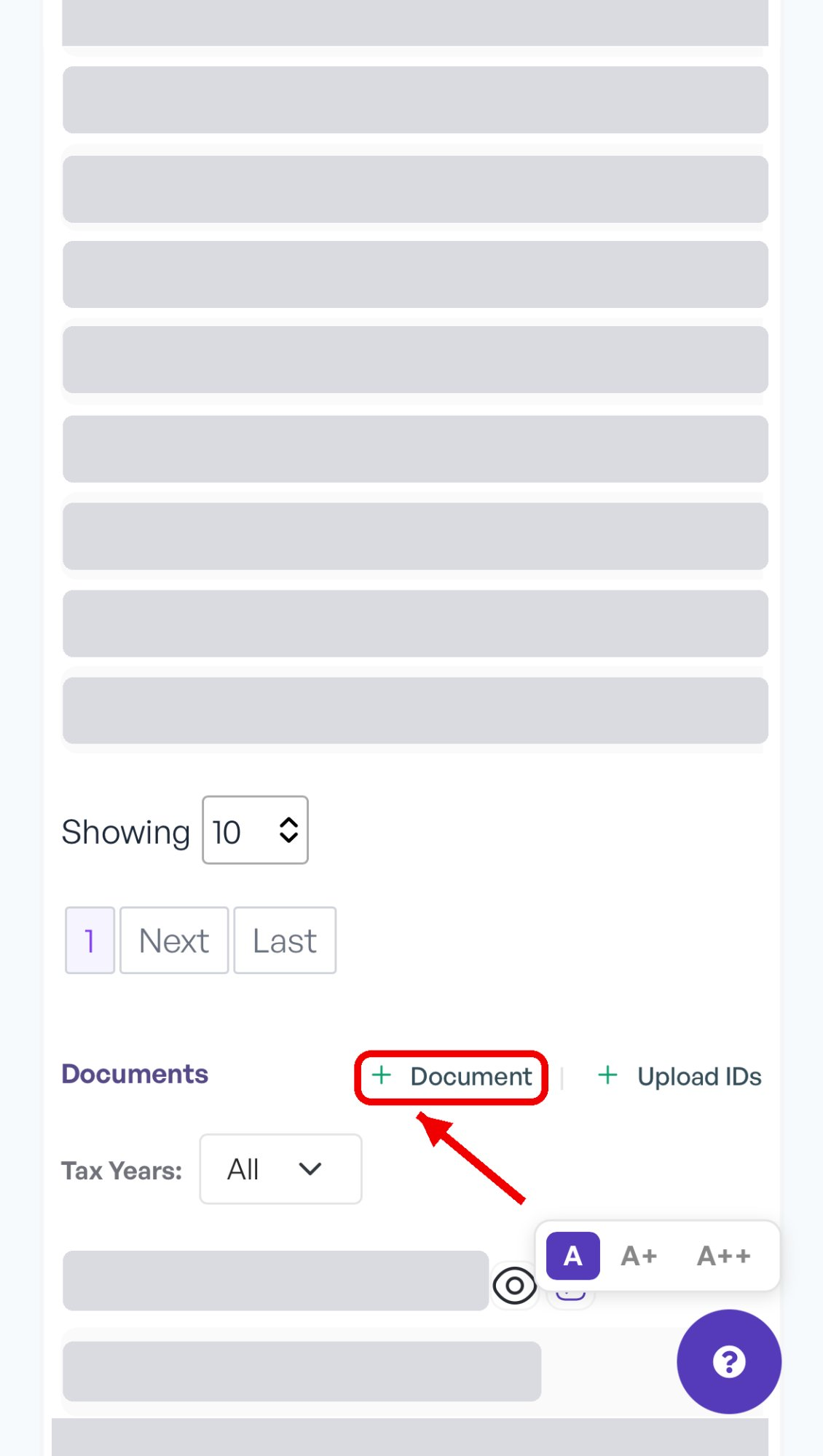
Click "+ Document."
Scroll down to the Documents section (below "New Documents") and click + Document on the right, next to "Upload IDs."
-
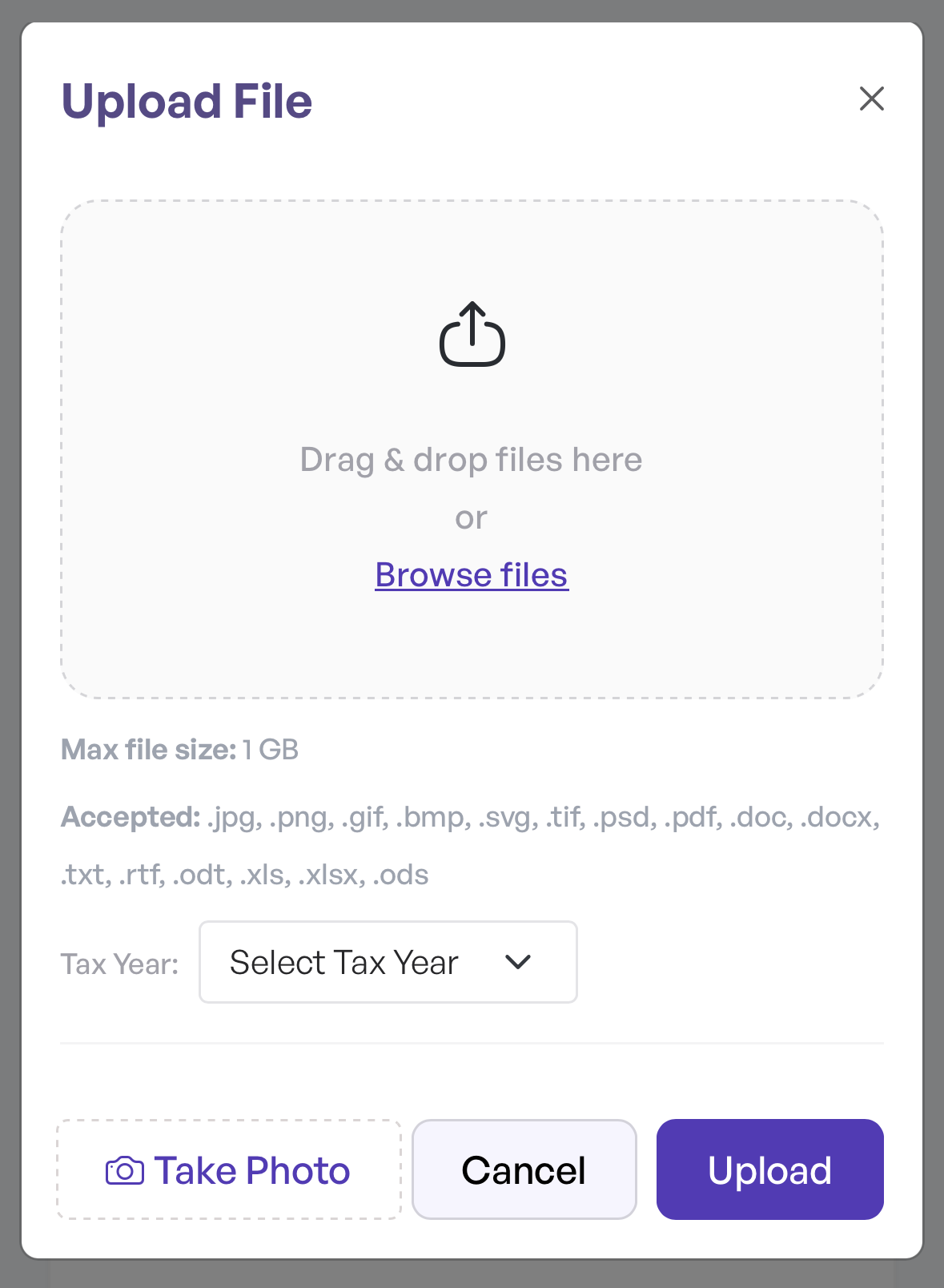
Choose your file and upload it.
An "Upload File" window opens. Drag and drop your files into the box, or click Browse files to pick them. Choose the Tax Year, then click Upload. On your phone, you can also tap Take Photo to snap a picture of a document.
-
Check that it's there.
Your file shows up in your document list once it's uploaded. Repeat for each document.